![Text.png]](https://supporthub.realtracs.com/hs-fs/hubfs/Text.png?height=40&name=Text.png)
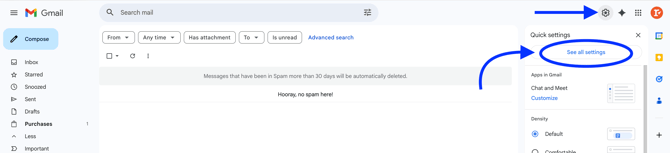
- Click the gear icon in the upper right corner of Gmail, and select See all settings.
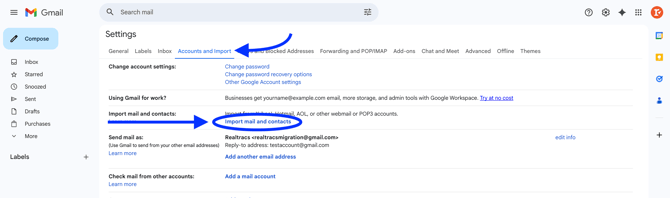
- Click on Accounts and Import. Then click on Import mail and contacts.
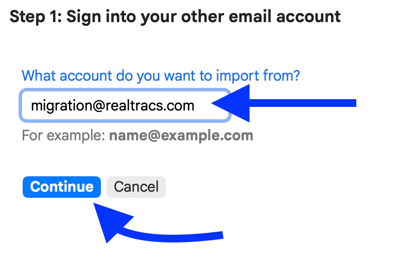
- Enter your Realtracs email address. Click Continue
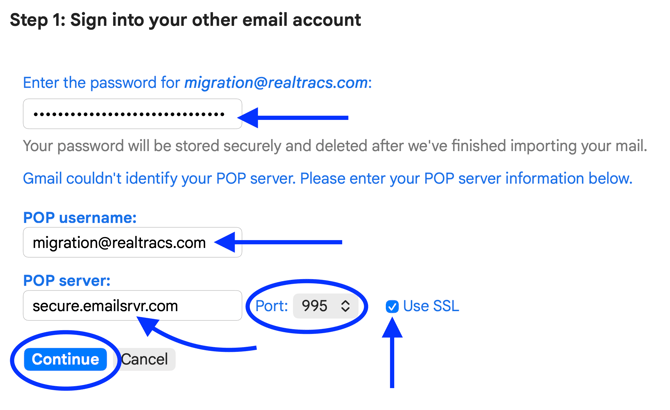
- Enter your Realtracs password.
- Enter your Realtracs email address into the POP username field.
- Type secure.emailsrvr.com into the POP Server field.
- Click Edit, and change the Port number to 995. Click the checkmark box to Use SSL. Click Continue.
- Click Start Import, and Click OK.
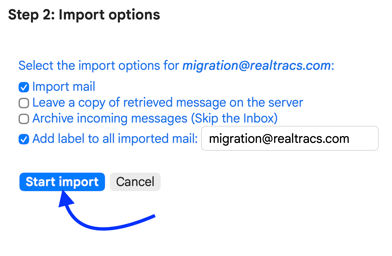
After email Import, separate your Realtracs emails into their own folder. Gmail calls folders "labels."
-
To create a folder, click the Labels plus icon, enter a label name, and click Create.
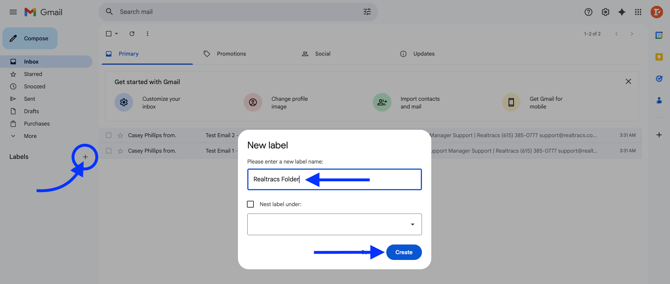
- The Gmail Inbox is where your Realtracs emails were imported to. Click Inbox to view your imported Realtracs emails.
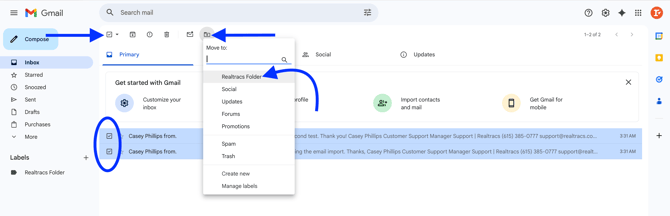
- You can select multiple Realtracs emails at once by clicking the checkmark box to the left of each email. Or to select up to 50 email messages at once, click the checkmark box at the top left of Gmail
- Once email messages have been selected, you can drag and drop them to the label you've created. Or you can click on the Move to icon and choose the label you've created.
- You'll need to switch your Realtracs email account to forward any further emails sent to your @realtracs.com email address to Gmail. Realtracs Support will help make this Settings change with you. To complete this change, please call (615) 385-0777 and press 1 to speak to a team member.
📢 Need Assistance? Contact our Support Team!
💬 Chat with us! Click the chat bubble at the top right.
🕗 Mon - Fri: 7am - 6pm CST Sat: 9am - 4pm CST
✉️ support@realtracs.com 📞 p: 615-385-0777