![Text.png]](https://supporthub.realtracs.com/hs-fs/hubfs/Text.png?height=40&name=Text.png)
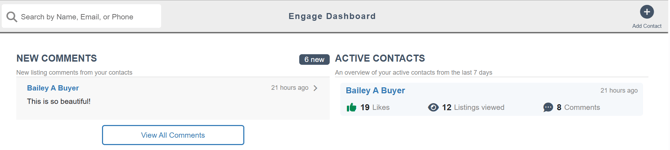
Realtracs Engage is a set of tools that helps agents gain insight into their clients activity. Your Engage Dashboard brings all of that activity into one place! From the dashboard you will be able to see who of your contacts is the most engaged, what they are looking at and the ability to see and respond to any comments from your clients.
Engage Dashboard
-
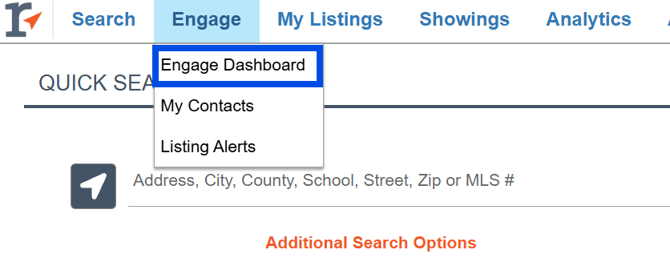
To get to your Engage Dashboard, hover over Engage then select Engage Dashboard.
Your Engage Dashboard is broken into different activity categories to make it easy to see who is actively engaged, respond to comments, and understand what is capturing your clients attention. 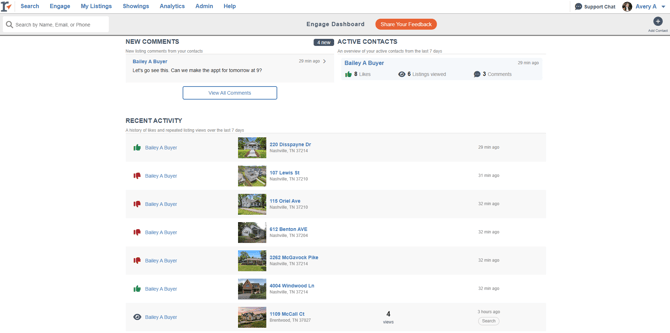
NEW COMMENTS:
- New Comments will display your contacts most recent comments on listings as well as the total number of new comments.
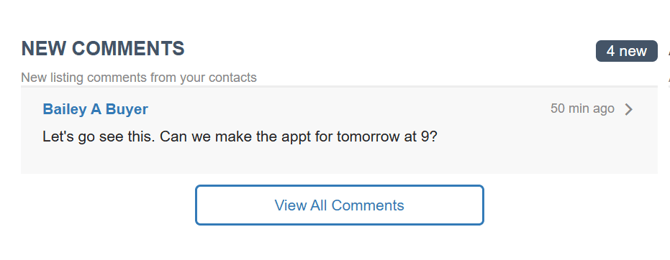
- To respond to the comment, just click on the comment and a text box will pop up with the current and any previous messages you have exchanged with the contact. To respond to the comment, just type your response in the Reply box and hit Send.
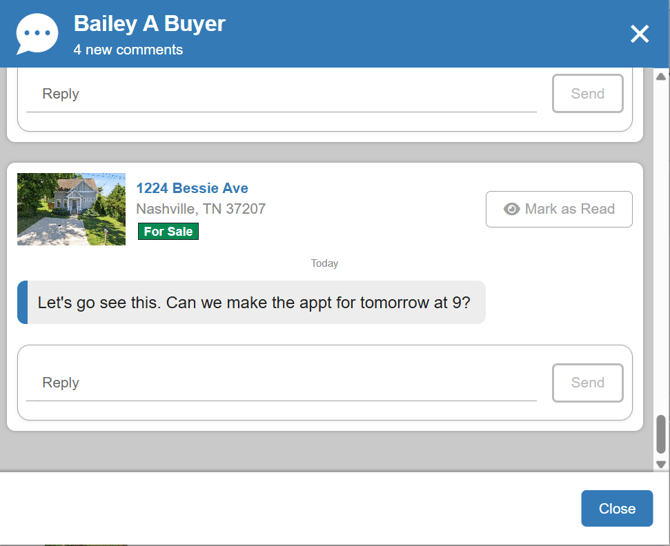
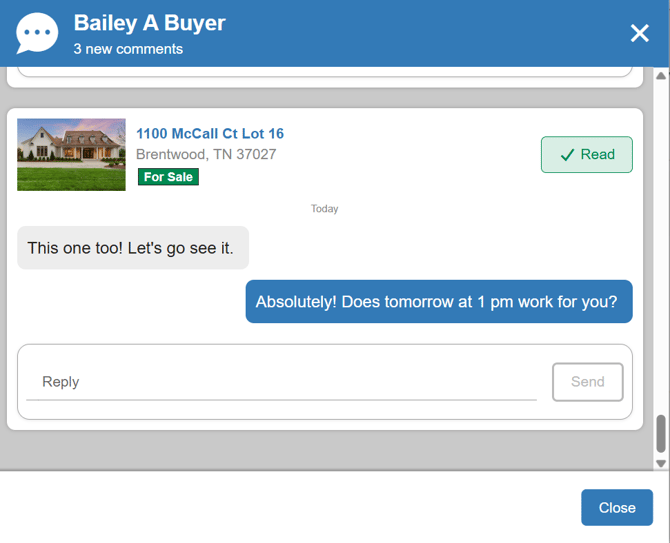
- Once you have read the comment, you can click on the Mark as Read button to help signify that you have read this message. The button will turn green and show Read.
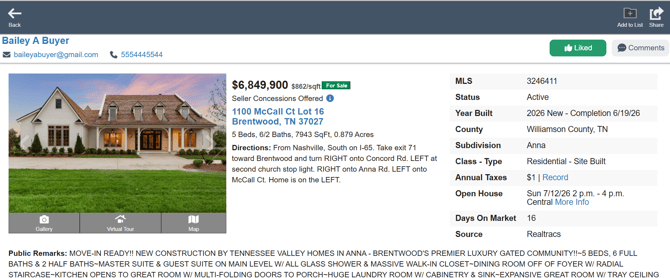
- To look at the listing that goes along with the comment, click on the listing address for the listing report to pull up. To view or leave a comment while looking at the listing report, click on the Comments box in the upper right corner. To get back to your Dashboard, click on the Back button in the upper left corner.
ACTIVE CONTACTS:
- Active Contacts is an overview of your most active contacts from the past 7 days.
- Each contact will display the number of Liked Listings, the total number of listings they have viewed and the number of comments they have left in the last 7 days.
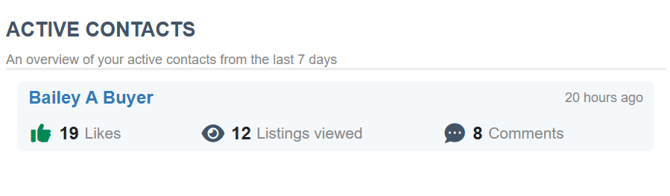
- To view that contact's specific activity, click on the contact's name. That will open up to that contact's Contact Activity Page. You will be able to see all their Liked and Disliked Listings and any listings that they have viewed. If the contact has viewed the same listing a minimum of 3 times, you will see the exact number of times they have viewed it.
- If the contact has Liked, Disliked or Viewed a listing from a search they ran on their own, the word 'Search' will be displayed in that activity's line.
- To see all of your corresponding comments with each other, click on the Comments button in the upper right corner.
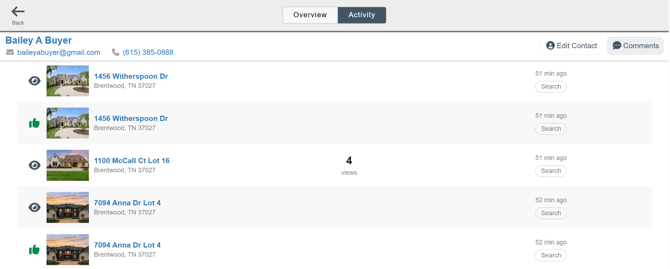
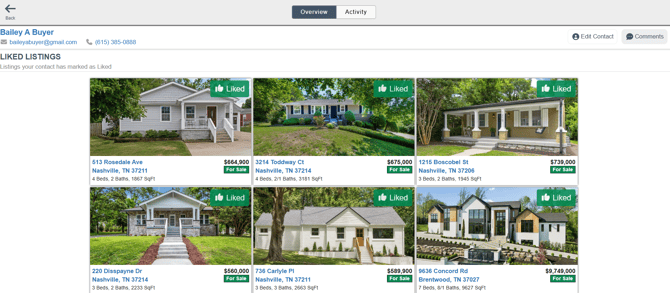
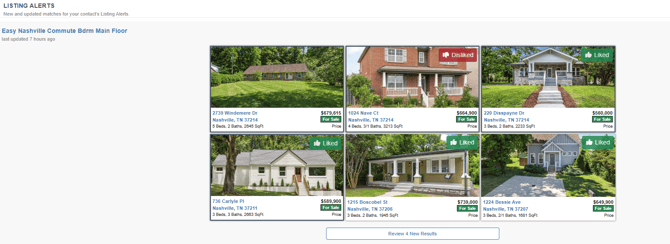
- To see an overview of that contact, click on the Overview button at the top center. The overview will display all the contacts Liked Listings and any Listings Alerts you have created for them.
- To get back to the Engage Dashboard, click on the Back button in the upper left corner.
Recent Activity:
-
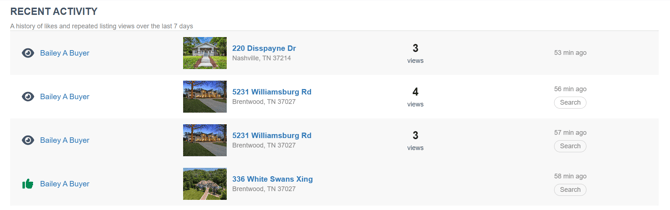
Your Recent Activity will show a history of Likes, Dislikes and repeated listing Views over the last 7 days for all your contacts.
- When a contact has Liked a listing a green thumbs up will be by their name
 . If a contact has Disliked a listing, a red thumbs down will be by their name.
- When a contact has repeatedly viewed a listing a minimum of 3 times, you will see the number of times they have viewed that listing.
- How we calculate a listing view:
- If a contact spends 15 or more seconds on the listing.
- If a contact scrolls down to the Community and School sections of the Listing Report.
- If a contact views the photos via the photo arrows or the Gallery.
- If a contact has repeatedly Viewed or Liked/Disliked a listing from a search that they ran on there own, a SEARCH button will be shown by the activity. If it does not say SEARCH for that activity, the contact viewed it from a Listing Alert you have set up for them.

How to Search for a Contact:
- If you do not see any activity for a specific contact on the Engage Dashboard, you can search by their Name, Email or Phone in the Search bar in the upper left corner of the Dashboard. That will take you to the contact's Contact Details Page for an overview of their Liked Listing, Listing Alerts, and Activity.